
Async video interviews have always had one structural weakness compared to live interviews: the candidate controls the pacing. They can read the question, pause, think, draft an answer somewhere else, and hit record only when they're ready. In 2024 that was already a signal-quality problem. In 2026, with a chat window open in the next tab, it became the integrity question recruiters kept raising.
OneWayInterview's anti-cheat mode is a set of three per-position toggles, available on all plans, that restrict candidate pacing during async video interviews: single-take recording, forward-only reveal, and auto-record. Each is independent. A position can run all three, one, or none. The choice depends on what signal you actually need from that role.
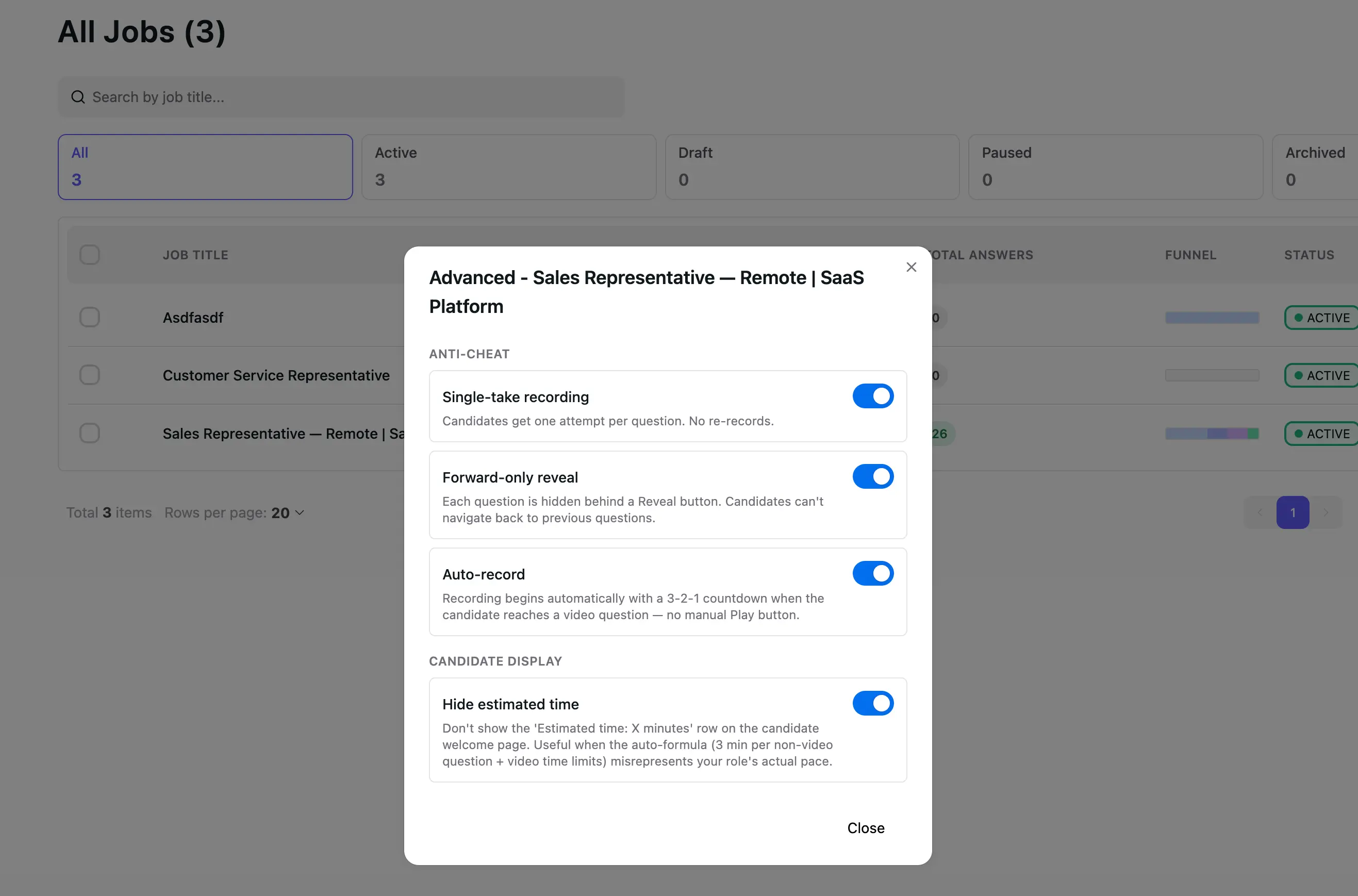
The screenshot below shows the Advanced modal where all three live. You reach it from the actions menu (···) on any position row in the Jobs list.
Why async video interviews are easy to cheat in 2026
When the candidate decides when to record, they also decide how prepared they look. Some of that is fine. A candidate who practices their answer before recording is showing you preparation, which is information. A candidate who reads the question, types it into ChatGPT, and reads the response back on camera is showing you something else: their ability to operate ChatGPT. That is not the signal you are paying for. This is the trade-off built into asynchronous video interviews: the flexibility that makes them work is also what makes them easier to game.
The three toggles below each remove a different part of the candidate's control over pacing and presentation. None of them eliminate AI assistance entirely. A determined candidate with a second device can work around most software constraints. What anti-cheat does is raise the cost of cheating and remove the casual versions of it.
Toggle 1: Single-take recording
What it does
The candidate gets one attempt at each video question. No re-records, no second takes. They hit record, they answer, they submit. There is no "let me try that again" button afterward.
What it catches
The pattern this is built for: a candidate records, listens back, edits their thinking, re-records, polishes, re-records again, and submits the fifth take. What you receive looks like preparation. It is actually iteration on top of immediate feedback. By the time you watch the answer, you are seeing the seventh version, not the first one.
OneWayInterview's single-take recording removes that loop. The answer you see is the answer they gave the first time. That is closer to what a live interview produces and meaningfully different from what async historically produces.
When to use it
Roles where composure under pressure is part of the work itself. Sales calls. Customer support escalations. Technical interviews where on-the-fly thinking matters. Any role where the candidate will face moments they can't rehearse for. Single-take measures the version of them that shows up when they can't redo it.
When not to use it
Roles where the artifact matters more than the delivery. A copywriter explaining their craft. A designer walking through portfolio decisions. In those cases, the polished take is closer to the real work product than a first-take improvisation would be. Leave it off.
Toggle 2: Forward-only reveal
What it does
Each question is hidden behind a "Reveal question" button. The candidate clicks to see the question. Once revealed, they cannot navigate backward to previous questions. The navigation strip and Back button are removed from the candidate's view when this toggle is on.
Refresh-bypass is closed: reload the page and the reveal state persists. A determined candidate could wipe their browser storage to reset the gate, but that drops every answer they have already submitted in this interview. The protection is a deterrent by cost (lose all progress) rather than an absolute lockout.
What it catches
The pattern this is built for: a candidate opens the interview, scrolls through all six questions, copies them into another window, drafts AI-assisted answers for each one, and then goes back through and "records" each answer reading off their second screen. Everything looks fluent because they prepared it that way.
OneWayInterview's forward-only reveal makes that workflow expensive. The candidate has to commit to seeing the question before they can do anything else. They can still try to use AI on a single question once they reveal it, but they can no longer plan all six in advance. The friction of revealing one question at a time, with no ability to scroll back to compare or re-read, works against the prep-everything-in-advance workflow. The toggle hides every question type except section headers: text, video, multiple-choice, and CV/LinkedIn questions all sit behind the Reveal question gate.
When to use it
Any role where you want the interview to test thinking, not preparation. Most behavioral questions fall here. Most situational judgment questions fall here. Most "tell me about a time" questions fall here. If you would not let the candidate read the question in advance during a live phone screen, you probably do not want them reading it in advance asynchronously.
When not to use it
Take-home assignments and case studies that legitimately benefit from preparation. If the question is "build a 3-slide deck explaining how you would launch product X," let them see the prompt, take their time, and come back when ready. Forward-only reveal works against that flow.
Toggle 3: Auto-record
What it does
When the candidate reaches a video question, recording starts automatically with a 3-2-1 countdown the moment their camera is ready. No manual Play button. The candidate does not press record. The system does.
By itself, auto-record does not prevent retries. Candidates can still re-record unless single-take is also on. What auto-record removes is the pre-recording gap.
What it catches
The pattern this is built for: a candidate sees the question, then sits with the camera off for 30-60 seconds while they type the question into another tool, read the response, and then press record. From your end, you see a confident answer that arrived 45 seconds after the question appeared. The lag was the cheat.
OneWayInterview's auto-record closes that window. The countdown starts the moment their camera is ready. The gap between seeing the question and speaking on camera is a 3-2-1 countdown, not an open pause. Whatever they say is what they had at the start, not what they prepared in the 60 seconds before recording.
When to use it
Pair this with single-take or forward-only reveal. By itself, auto-record removes the "where do I click" friction (which is genuinely useful for some candidates) but does not stop retry-based gaming. Where it matters is in combination: auto-record plus single-take means the candidate cannot stall and cannot retry. That combination is where the integrity benefit lives.
When not to use it
Roles where you want the candidate to take a moment to collect themselves before answering. Some companies use that pause as a deliberate signal of respect for the candidate. If that is your culture, leave auto-record off. The manual Play button is the implicit "ready when you are."
What the candidate sees with all three on
The combination of single-take, forward-only reveal, and auto-record produces the most rigorous candidate experience OneWayInterview offers. Walked through end-to-end:
- Candidate lands on the interview page. They see the welcome screen with company logo and job description. They click "Continue."
- A name + email + privacy-agreement screen appears. They fill it in and click "Start." The browser asks for camera and microphone permission at this point.
- Because single-take is on, a blocking "Before you start" modal appears explaining the one-attempt rule. They acknowledge and continue.
- The first question appears as a "Reveal question" button rather than the question itself.
- They click "Reveal question." The question text appears, the camera turns on, and a 3-2-1 countdown fires automatically.
- Recording begins. They answer. They click "Stop" when finished. There is no "Retry" button.
- They click "Continue." There is no "Back" button visible. The next question appears as another "Reveal question" gate.
- They proceed until the final question, where the action button reads "Submit" instead of "Continue."
What is missing from that flow, compared to the default candidate experience: the option to read questions in advance, the option to record at their own pace, and the option to re-record. Everything else (privacy notice, company branding, mobile support, gallery-upload fallback when a network error breaks an in-progress upload) is the same.
A candidate who completes this flow cleanly has demonstrated composure under conditions closer to a live interview than standard async has ever produced. That is the signal you are buying with the harshest combination.
How to set up anti-cheat for video interviews
The toggles are not on the position edit page. They are on the Jobs list, which is the most common support question for this feature. Here is the path:
- Open the Jobs list in your dashboard.
- Find the position row you want to configure.
- Click the actions menu (···) at the right end of the row.
- Select "Advanced."
- A modal opens titled "Advanced - <position name>" with two sections: Anti-cheat at the top (the three toggles) and Candidate display below (one separate toggle).
- Flip the toggles you want. Settings save per-position the moment a toggle is flipped. The modal footer only has a Close button.
- Close the modal.
The Candidate display section contains one toggle, Hide estimated time, which is not part of anti-cheat. It hides the "Estimated time: X minutes" row on the candidate welcome page. Useful when the auto-formula (3 minutes per non-video question plus the sum of video time limits) misrepresents your role's actual pace. Mentioned here so you are not surprised to see a fourth toggle in the modal.
The settings apply to candidates who start the interview after the toggle is flipped. Candidates who have already submitted are unaffected. Candidates currently mid-interview keep their flow only until they refresh the page: any reload re-reads the position's current settings, so a refresh after a toggle change picks up the new state.
Each position gets its own anti-cheat settings
Every toggle is set per-position. A "Senior Backend Engineer" position can have all three toggles on while a "Junior Marketing Intern" position in the same account has all three off. There is no global account-level switch.
This matters because the right rigor level differs by role. Senior roles where the bar is high, sales roles where composure is the work, and technical roles where on-the-fly thinking matters earn the full combination. Entry-level positions where you want candidates to feel comfortable usually do not.
Can OneWayInterview detect if a candidate is using AI?
No. OneWayInterview's anti-cheat mode does not detect AI use. It raises the cost of using AI by restricting the candidate's control over pacing. Anti-cheat is friction, not surveillance. It does not:
- Detect that the candidate is reading off a second screen.
- Detect that the candidate is using a teleprompter or notes off-camera.
- Lock the candidate's browser tabs or prevent them from switching applications.
- Record the candidate's screen or keystrokes.
- Generate an audit log of attempted retries that the system blocked.
A candidate with a second phone and AI generating live captions can still cheat. What anti-cheat does is raise the bar from "passively easy" to "actively requires effort and a second device." That is meaningful when you are screening at volume. Most casual ChatGPT-in-the-next-tab cheating disappears, and the candidates who do bypass the controls are at least demonstrating planning, which is itself a signal.
Anti-cheat is included on all OneWayInterview plans
All three anti-cheat toggles are available on every OneWayInterview plan, including the 14-day free trial. There is no per-position charge and no usage limit. Turn them on for as many positions as you want.
Frequently asked questions
How do I enable anti-cheat in OneWayInterview?
On the Jobs list (not the position edit page). Click the actions menu (···) on the position row, then "Advanced." A modal opens with the three anti-cheat toggles at the top: Single-take recording, Forward-only reveal, and Auto-record. Flip the ones you want. Settings save the moment the toggle is flipped.
Can candidates cheat on async video interviews?
Yes, without controls in place, they can. The most common pattern in 2026 is candidates pasting questions into ChatGPT, reading the response, and recording an answer. OneWayInterview's anti-cheat mode raises the cost of that workflow through three per-position toggles: Single-take recording (one attempt per question), Forward-only reveal (questions hidden until clicked, no scrolling back), and Auto-record (3-2-1 countdown starts automatically, no manual delay). Combined, they close the gap between async and live interview integrity for most cheating patterns.
Does OneWayInterview's anti-cheat stop candidates from using ChatGPT?
It removes the casual versions of the workflow. A candidate cannot scroll through all questions, draft answers in ChatGPT, and read them back, because Forward-only reveal hides the questions one at a time. A candidate cannot pause for 30 seconds to consult AI before recording, because Auto-record fires a 3-2-1 countdown automatically. A determined candidate with a second phone running real-time AI captioning can still cheat, but that is no longer the path of least resistance.
Will my candidates know I have anti-cheat turned on?
Yes. Each toggle that is on produces a corresponding "what to expect" bullet on the candidate welcome page before the interview starts, naming the behavior plainly (for example: "This interview uses single-take recording: you get one attempt per question. No re-records."). Once inside the interview, Forward-only reveal also shows "Reveal question" buttons instead of questions, which is deliberate: that visibility signals to the candidate that the interview has structure. The toggle names themselves are not labeled, but the behaviors are disclosed upfront.
Can I turn anti-cheat on after I have already received some candidates?
Yes. The toggle affects candidates who start the interview after the flip. Candidates already in progress or already submitted are unaffected. You will not retroactively invalidate any responses you have already collected.
Does anti-cheat apply to text questions or only video?
Single-take recording and Auto-record apply only to video questions, since text, multiple-choice, and CV/LinkedIn questions have no take concept and no recording. Forward-only reveal is the broadest of the three: it hides every question type except section headers, so text, video, multiple-choice, and CV/LinkedIn questions all sit behind a Reveal question button until the candidate clicks it.
Can I see if a candidate tried to retry but the system blocked them?
Not currently. The system simply does not allow a retry when single-take is on. There is no audit log entry for blocked attempts. Reach out to support if this would be useful to you and we will look at adding it.
What is the difference between anti-cheat and AI screening?
AI screening evaluates the content of the candidate's answer: was it correct, was it acceptable, did it match the rubric. Anti-cheat protects the integrity of how the answer was given: one take, no peeking ahead, automatic recording. The two are complementary. AI screening alone tells you the answer was good. Anti-cheat plus AI screening tells you the answer was good and that you can trust the conditions under which it was given.
Try it on yourself before turning it on for candidates
The candidate experience under the harshest combination is different to sit through than to read about. Before you flip these on for real candidates, walk through it yourself. Share the interview link with a colleague and have them do the interview cold, without any context. The friction of clicking Reveal, watching the countdown fire, and not being able to redo a take lands differently when you are on the candidate side of it.
If you have a OneWayInterview account, the Advanced modal is one click away on any position you already have set up. If you are not yet using OneWayInterview, the 14-day free trial requires no credit card. Set up a position, turn on anti-cheat, and feel the integrity model from the candidate's seat before deciding which roles deserve it.